
Zoom Fatigue Solutions: 7 Science‑Backed Tips for Hybrid Workers
February 27, 2026
Can 30 Days of Digital Minimalism Change Your Life? Here’s How to Start
February 27, 2026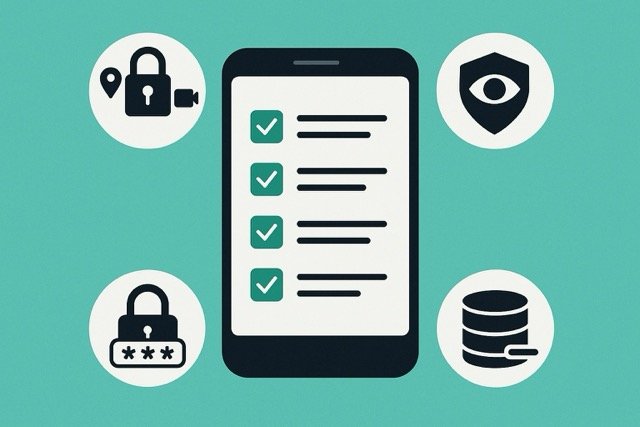
Digital wellbeing isn’t just about screen time—it’s about feeling safe, calm, and in control of your online life. Privacy is a cornerstone of that wellbeing. Every click, app, and cloud sync leaves a data trail, and if you don’t manage it, you risk breaches, identity theft, and constant tracking.
This guide gives you a complete privacy hygiene checklist—from quick wins you can do in five minutes to long-term habits that keep your digital footprint lean and secure.
Why Privacy Is Part of Wellbeing
Think of privacy as mental health for your devices. When your accounts are cluttered with old logins, apps have unnecessary permissions, and trackers follow you everywhere, you’re not just vulnerable—you’re distracted.
Here’s why privacy matters for wellbeing:
- Reduces stress: Fewer breach alerts and spam notifications mean less anxiety.
- Protects focus: Ads and trackers steal attention; blocking them restores clarity.
- Prevents harm: Strong passwords and MFA stop account takeovers and fraud.
- Builds trust: You control what data is shared, not big tech or random apps.
Fact: According to Verizon’s DBIR cybersecurity report, 80% of breaches involve weak or reused passwords. Privacy hygiene isn’t optional—it’s essential.
Read Also: Guide for Combating Cyberbullying
Quick Wins (5-Minute Fixes)
Start with these high-impact, low-effort steps. They’ll give you instant protection and peace of mind.
✅ App Permissions Audit
Every app wants access—but most don’t need it. Location, camera, microphone, and contacts are the biggest culprits.
Action Steps:
- Go to Settings → Privacy on your phone and laptop.
- Check permissions for:
- Location
- Camera
- Microphone
- Contacts
- Photos
- Switch to “Ask each time” or “While using the app” for sensitive access.
- Delete apps you haven’t opened in 60 days.
Pro Tip: Many apps work fine with approximate location. Turn off precise GPS unless absolutely necessary.
Read also: How to Restrict Adult Content on iPhone (family filters)
✅ Password Manager & MFA Setup
Passwords are your first line of defense. If you reuse them, you’re inviting hackers in.
Action Steps:
- Choose a trusted password manager (e.g., 1Password, Bitwarden, Dashlane).
- Import existing passwords and run a health check.
- Fix weak or reused passwords immediately.
- Enable Multi-Factor Authentication (MFA) for:
- Banking
- Social media
- Cloud storage
- Prefer authenticator apps or hardware keys over SMS codes.
Pro Tip: Use passphrases like desert-lantern-coral-moon for your master password. Store recovery codes offline.
✅ Browser Tracking Controls
Your browser is a data magnet. Tighten its privacy settings.
Action Steps:
- Enable Strict Tracking Protection in your browser.
- Install privacy extensions:
- uBlock Origin
- Privacy Badger
- Cookie AutoDelete
- Block third-party cookies.
- Disable ad personalization in Google, Facebook, and other accounts.
- Clear cookies and cache regularly—or auto-clear on exit.
Pro Tip: Create two browser profiles:
- Work/Research: Moderate blocking to avoid breakage.
- Private: Strict blocking, minimal sign-ins.
Data Minimization Habits
Data you never share can’t be stolen. Adopt these habits:
- Inbox hygiene: Unsubscribe from newsletters you ignore.
- Cloud cleanup: Delete old backups and duplicate photos quarterly.
- Form discipline: Share only essential info. Use aliases for sign-ups.
- Local-first storage: Keep sensitive files offline or encrypted.
- Social visibility: Hide birthdays, addresses, and family links.
- Device sharing: Use guest accounts instead of sharing your main profile.
Weekly Ritual: Spend 10 minutes clearing downloads, closing old sessions, and reviewing app access.
Family Safety Settings
Privacy is a family affair. Protect kids and elders with these steps:
- Create child/elder profiles with limited permissions.
- Enable content filters and safe search.
- Use temporary location sharing.
- Set screen time and app limits.
- Teach fraud awareness: Stop—Verify—Report.
- Auto-install security updates.
House Rules:
- No password reuse.
- Two adults hold recovery codes offline.
- Quarterly privacy review for all devices.
Advanced Privacy Moves
Want to go beyond the basics? Try these:
- Encrypted Messaging: Switch to Signal or WhatsApp with disappearing messages.
- VPN: Use a reputable VPN for public Wi-Fi.
- Secure DNS: Enable DNS-over-HTTPS in your browser.
- Privacy-first Search: Use DuckDuckGo or Startpage.
- Disposable Emails: Use services like SimpleLogin for sign-ups.
One-Page Privacy Checklist
☑ Review app permissions
☑ Delete unused apps
☑ Install password manager
☑ Enable MFA
☑ Block trackers in browser
☑ Minimize form data
☑ Quarterly cloud cleanup
☑ Family safety settings
☑ Weekly privacy tidy
FAQ
What’s the fastest way to improve privacy today?
Install a password manager, enable MFA, and audit app permissions.
Will strict tracking blockers break sites?
Sometimes. Use two browser profiles—strict for personal, moderate for work.
Is SMS-based MFA okay?
Better than nothing, but authenticator apps are stronger.
Do privacy tools slow down devices?
Modern blockers are efficient. If you’re experiencing slow performance, consider reducing heavy lists or whitelisting trusted sites.