

Sleep Better by Tech: 7 Proven Evening Routines You’ll Love (Evidence‑Based)
September 14, 2026
Garmin Forerunner 165 Review: What Surprised Us About This GPS Watch
September 14, 2026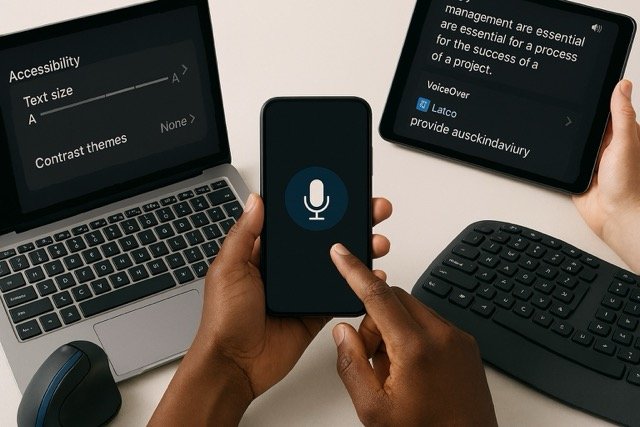
If your phone, laptop, or favourite app isn’t easy to see, hear, or control, it isn’t working for you. The good news? Every modern operating system ships with powerful accessibility features—many just a tap away—that can make screens clearer, voices louder (or softer), and interactions simpler.
In this guide, I’ll show you practical, accessible technology tips that you can apply in minutes, backed by scientific and standards-based references, and with thoughtful product suggestions that you can find on Amazon.
Why accessibility matters (and why you should care)
Accessibility isn’t only for people with permanent disabilities; it helps anyone facing situational (noisy room), temporary (sprained wrist), or progressive (age-related) barriers. Globally, over 2.5 billion people need at least one assistive product, yet nearly 1 billion lack access—making everyday tasks unnecessarily hard and excluding huge numbers from digital life. Accessibility features bridge that gap and benefit everyone.
On the web, the W3C’s WCAG 2.2 provides testable standards for perceivable, operable, understandable, and robust content—think text size, colour contrast, keyboard access, captions, and alt text. Following WCAG doesn’t just help users with disabilities; it consistently improves usability for all.
How to use this guide
You’ll find Quick Settings across OS, Voice & Audio Accessibility, Hardware Aids and a practical FAQ
Quick settings across OS (text size, contrast)
Make text readable—fast
Windows 11:
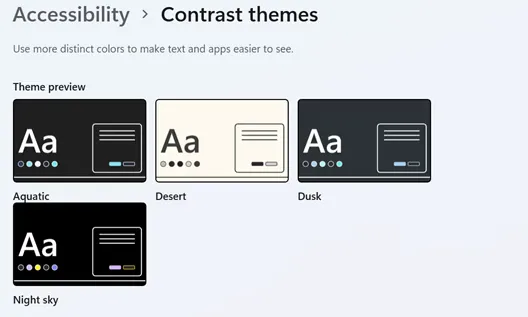
- Go to Settings → Accessibility → Text size to enlarge system fonts; for all UI elements, use Settings → System → Display → Scale. Add Contrast themes for higher legibility. Keyboard shortcuts: Win + + (Magnifier), Win + Esc (close Magnifier).
macOS:
- System Settings → Accessibility → Zoom for screen magnification; Display → Colour filters and Hover Text to zoom words under the pointer. Turn on VoiceOver with ⌘ + F5 to have on‑screen content read aloud.
iOS/iPhone:
- Settings → Accessibility to adjust Display & Text Size (bold text, larger font, increase contrast), Zoom, and Magnifier. Use Accessibility Shortcut (triple‑click side/top button) to toggle favourite features quickly.
Android:
- Settings → Accessibility to change Font size, Display size, Magnification, and Colour correction. Select to Speak reads selected text or camera content aloud; High‑contrast text improves legibility on many devices.
Voice & audio accessibility
Control devices hands‑free
Windows 11 Voice Access lets you open apps, browse, and dictate without a keyboard or mouse—ideal for individuals with motor impairments or repetitive strain injuries. Pair with Live Captions for real‑time transcription of system and microphone audio. [microsoft.com]
iOS Voice Control enables full device navigation—tap, swipe, type—with voice commands and overlays (names, numbers, grids) for precision.
Android Voice Access enables app launching, text entry, and UI control via voice. Lookout and Select to Speak provide computer-vision descriptions and spoken output to support individuals with low vision. Recent Android updates expand dark theme coverage and streamline Voice Access activation.
Hear better, understand more
Live Captions (Windows, Android) and Closed Captions/Subtitles (across all OS and major media apps) significantly improve comprehension and engagement—research shows that captions aid understanding, vocabulary, and retention, especially when content is challenging or when learners are less proficient.
In educational and professional contexts, caption enhancements (such as keyword captions and highlighted text) and alternative narration can further enhance factual comprehension for diverse learners, including those with intellectual disabilities.
Screen readers: what people actually use
Recent global surveys of thousands of users have shown that JAWS and NVDA are dominant on desktop, while VoiceOver is prevalent on mobile. Most users navigate pages by heading levels, reinforcing the importance of a clear semantic hierarchy in content and apps.
Tip: If your app or site has complex components (menus, tabs, dialogues), ensure they behave predictably with keyboards and screen readers; common pain points include missing alt text, unexpected screen changes, and CAPTCHA without alternatives.
Hardware aids (keyboards, mice)
Ergonomics: relieve strain and type comfortably
Peripherals can help reduce awkward wrist postures (such as ulnar deviation and pronation) and may alleviate discomfort over time. Research indicates that split/tented keyboards and mechanical keyboards can support neutral alignment and improve typing performance for frequent typists; adjustable designs help accommodate different body types and desk heights.
Practical setup:
- Keep wrists neutral—avoid bending outward (ulnar deviation) and excessive extension; consider negative tilt (front edge lower than back).
- Elbow height ≈ keyboard height; float hands above wrist rests while typing to maintain mobility.
- Use pointer size/trails (Windows) or Cursor/Pointer (macOS) settings to make the cursor easier to track.


Voice & audio setup—practical steps
Windows 11
- Turn on Voice access: Settings → Accessibility → Speech → Voice access.
- Enable Live captions: Settings → Accessibility → Captions.
- Narrator: Win + Ctrl + Enter; customise voice, verbosity, and braille support.
macOS
- VoiceOver: ⌘ + F5 to toggle; customise in System Settings → Accessibility → VoiceOver.
- Zoom & Hover Text: System Settings → Accessibility → Zoom/Hover Text.
- Captions: System Settings → Accessibility → Hearing → Captions.
iOS/iPadOS
- Voice Control: Settings → Accessibility → Voice Control; use “Show numbers” and “Show grid” for precision.
- Live Captions & Hearing Devices: in Accessibility → Hearing; manage audio balance and mono audio as needed.
- Accessibility Shortcut: triple‑click side/top button for quick toggles.
Android
- Voice Access: Settings → Accessibility → Voice Access.
- Select to Speak & Magnifier: enable in Accessibility; Pixel phones have dedicated Magnifier app.
- The Dark Theme expansion (Android 16) reduces glare across apps without native dark modes.
Final thoughts
Accessibility is not a bolt‑on; it’s how technology becomes humane. Start with quick settings, layer in voice, captions, and ergonomic hardware, and publish content that respects WCAG and Inclusive Design principles. Your future self—and your readers—will thank you.
Frequently Asked Questions (FAQ)
I don’t have a diagnosed disability. Is accessibility still relevant?
Absolutely. Accessibility features support situational, temporary, and progressive needs—helpful for anyone in bright sun, noisy spaces, or after an injury. Globally, access to assistive technology remains a significant public health and equity issue, not a niche concern.
Which screen reader should I test with for my website?
On desktop, test with NVDA (free) and JAWS; on macOS/iOS, test VoiceOver, and on Android, test TalkBack. Surveys show that these are the most commonly used combinations; most users navigate by headings, so ensure your semantic outline is accurate.
Are ergonomic keyboards and mice worth it?
Evidence supports neutral wrist alignment (split/tent designs, vertical mice) to reduce deviation and strain. Mechanical keyboards can improve accuracy and comfort for heavy typists; adjustable designs help personalise posture. Combine hardware changes with micro‑breaks and good desk ergonomics.